I was sitting in a cramped corner of a local cafe last Tuesday, trying to troubleshoot a client’s workflow on my laptop, when I saw it: a notification on my phone warning me that I’d nearly exhausted my monthly allowance. It’s that same sinking feeling we all get—the sudden realization that your digital life is leaking money through your pocket. Most “experts” will tell you to download some obscure, bloated utility app or spend hours digging through obscure sub-menus to figure out how to save mobile data, but frankly, that’s just more noise. We don’t need more complicated software; we need a few sensible adjustments to how we actually use our devices.
I’m not here to give you a lecture on technical minutiae or sell you on a “magic” setting that doesn’t exist. Instead, I want to share the practical, repeatable habits I’ve used to keep my own connectivity stable without constantly babysitting my usage meter. We are going to focus on functional changes—the kind of stuff that actually works when you’re on the move and can’t afford a surprise bill. Let’s get your data under control so you can stop troubleshooting your phone and get back to your day.
Stop the Data Drain How to Save Mobile Data for Real

First things first: let’s stop treating our phones like they have an infinite supply of bandwidth. Most of the “drain” isn’t even coming from things you’re actively doing; it’s the silent theft happening in the background. I’ve spent enough time troubleshooting network bottlenecks to know that your apps are likely working overtime while you’re just trying to read an email. To get a handle on this, you need to disable background data usage for those resource-heavy culprits like social media or cloud storage. If you aren’t actively looking at an app, it shouldn’t be talking to a server.
If you want a quicker, more “set it and forget it” approach, I’m a big fan of utilizing your device’s built-in low data mode settings. It’s essentially a digital triage that tells your phone to stop prioritizing non-essential updates and high-res syncing. It might mean your Instagram feed takes an extra second to load, but it’s a small price to pay to prevent data overages at the end of the month. Think of it like a low-power mode for your connection; it’s not about cutting off the world, it’s just about making sure your remaining megabytes are spent on things that actually matter.
Stop Background Apps From Stealing Your Connection
If you’ve ever looked at your usage report and wondered where all your gigabytes went, I’d bet my best fountain pen it was your apps. Most of them are like those needy guests who won’t leave your house; they stay in the background, constantly checking for updates or refreshing feeds even when your screen is dark. To fix this, you need to go into your device settings and manually disable background data usage for anything that isn’t mission-critical. I usually leave my email and maps alone, but social media apps? They get the axe.
It’s not just about being stingy; it’s about being intentional. If you’re tired of the constant “data warning” notifications, I highly recommend leaning into your phone’s built-in low data mode settings. It’s a blunt instrument, sure, but it works. It forces your device to stop doing the heavy lifting—like pre-loading videos or syncing massive cloud libraries—until you’re back on a stable connection. Think of it as setting boundaries for your tech. Once you limit app data consumption to only what you actually need in the moment, you’ll stop feeling like you’re constantly troubleshooting your monthly bill.
Why You Must Disable Background Data Usage Immediately
Look, I’ve spent enough time troubleshooting network bottlenecks in corporate environments to know that your phone is likely lying to you. You might think you’re only using data when you’re actively scrolling through an app, but your device is actually performing a thousand tiny, invisible tasks in the background. Every time an app refreshes its feed, checks for a push notification, or syncs a cloud backup while you’re out running errands, it’s chipping away at your monthly allowance. If you don’t disable background data usage now, you aren’t just wasting megabytes; you’re essentially leaving your digital tap running while you’re not even in the room.
The real danger isn’t just a slow connection; it’s the sudden, stinging realization when you get that “data limit exceeded” alert. Most of us don’t have the bandwidth—mental or financial—to deal with unexpected overage charges. By taking five minutes to limit app data consumption through your system settings, you’re building a small, automated barrier between your budget and your device’s appetite. It’s about setting a system that works for you, rather than you constantly working to manage your phone. Once these settings are locked in, you can stop worrying about the invisible drain and actually focus on whatever you’re doing.
Simple Low Data Mode Settings That Actually Work
Look, you don’t need to become a network engineer to get this under control. Most modern smartphones have built-in “Low Data Mode” or “Data Saver” toggles tucked away in the cellular settings. I usually tell my clients to treat these like a thermostat; they aren’t meant to be turned on once a month during a crisis, but rather left on as a baseline to limit app data consumption automatically. When you flip this switch, your phone stops doing the “extra” stuff—like pre-loading high-res images in your feed or updating weather widgets every five minutes—that eats your cap while you aren’t even looking.
If you want to get more granular, I recommend looking at your specific app settings for things like video streaming or social media. Most of these platforms default to “High Quality” because they want to show off, but that is a massive waste of bandwidth. Switching your YouTube or Netflix settings to “Data Saver” is one of the easiest ways to optimize smartphone data consumption without feeling like you’re living in the stone age. It’s about finding that sweet spot where the tech works for you, rather than you constantly working to manage the tech.
How to Limit App Data Consumption Without the Headache
Look, I don’t have the patience for scrolling through endless menus just to find one toggle, and I’m guessing you don’t either. Most of us treat our smartphones like magic boxes, but they’re actually just hungry little machines constantly looking for something to download. To truly limit app data consumption without losing your mind, you need to stop treating every app as an equal. Your banking app doesn’t need to be refreshing its entire database every ten minutes, but your maps or messaging apps might. Go into your device settings and look for the “Data Usage” section—it’s usually buried, but it’s the only way to see which specific culprits are actually bleeding you dry.
Once you’ve identified the offenders, be ruthless. I usually go through my list and manually restrict any app that doesn’t provide immediate, real-time value when I’m away from my home network. It’s about finding that sweet spot between functionality and efficiency. If you can optimize smartphone data consumption by restricting high-bandwidth apps like YouTube or Instagram to Wi-Fi only, you’ve already won half the battle. It isn’t about being stingy; it’s about making sure your connection is available for the things that actually matter when you’re out and about.
The Truth About Wi Fi vs Cellular Data Usage
Here is the reality: your phone doesn’t actually know the difference between a high-speed fiber connection and a spotty LTE signal; it just knows it has something to download. We often fall into the trap of thinking that as long as we are “connected,” we are safe. But the fundamental difference in wi-fi vs cellular data usage comes down to cost and capacity. Wi-Fi is essentially your “unlimited” playground, whereas cellular data is a finite resource that comes with a price tag—both in dollars and in mental bandwidth.
I’ve seen too many people treat their data plan like an infinite well, only to find themselves staring at a “Data Limit Reached” notification by the 20th of the month. To truly prevent data overages, you have to stop treating your mobile connection as a substitute for a home network. If you’re streaming high-def video or downloading massive OS updates while on a cellular signal, you aren’t just being inefficient; you’re essentially throwing money away. My rule of thumb is simple: if it’s heavy, slow, or large, wait for the Wi-Fi. It’s not about being cheap; it’s about being intentional with the tools you have.
Smart Habits to Optimize Smartphone Data Consumption
At the end of the day, settings and toggles are only half the battle. You can have the most aggressive low data mode settings enabled, but if your behavior doesn’t change, you’re still going to be staring at a “data limit reached” notification by the third week of the month. To truly optimize smartphone data consumption, you have to stop treating your cellular connection like an infinite resource. I’ve learned through years of managing both IT systems and my own household chaos that intentionality is everything.
Start by making a mental distinction between “on-the-go” tasks and “at-home” tasks. If you’re scrolling through high-res video feeds or downloading large work files, do it on your home network. It sounds obvious, but we often fall into the trap of trying to “catch up” on everything while sitting in a coffee shop or riding the train. By being disciplined about when you engage with data-heavy content, you can effectively prevent data overages before they even happen. It’s not about restricting your life; it’s about building a predictable rhythm so your phone works for you, rather than you constantly working to manage your phone.
Practical Ways to Prevent Data Overages Every Month
At the end of the month, nobody wants that “usage alert” text feeling like a punch to the gut. To truly prevent data overages, you have to move past one-off fixes and start looking at your monthly cycle as a predictable system. I’ve found that the most effective way to do this is to treat your data like a finite budget. Instead of waiting for the warning signs, I set a personal “soft cap” halfway through the billing cycle. If I’ve already hit 50% of my limit by the 15th, I know it’s time to tighten the screws—meaning I stop streaming video on the go and stick strictly to known Wi-Fi zones.
Another practical move is to audit your high-bandwidth culprits. We all have that one app that seems to eat through our plan while we aren’t even looking. Take ten minutes to go into your settings and manually limit app data consumption for anything non-essential, like social media feeds or news aggregators. It’s not about being restrictive for the sake of it; it’s about ensuring that when you actually need to use your connection for something important, the bandwidth is there. It’s much easier to manage a system that’s already under control than to try and troubleshoot a massive bill after the damage is done.
Five quick wins to keep your data usage in check
- Stop the auto-play madness on social media. Whether it’s Instagram or TikTok, those videos are data vampires; go into your app settings and toggle off “Autoplay” so you’re only using bandwidth when you actually intend to watch something.
- Audit your cloud syncing habits. I’ve seen too many people lose half their data cap just because Google Photos or iCloud decided to upload a high-res video of their cat while they were out on a walk—set your backups to “Wi-Fi only” and walk away.
- Treat your browser like a minimalist. If you’re browsing on the go, use a browser that offers a “Lite” mode or data-saving feature; it strips out the heavy, unnecessary bloat that slows down your connection and eats your plan.
- Download your essentials before you leave the house. If you know you’re going to be commuting or sitting in a cafe without reliable Wi-Fi, download your Spotify playlists and Google Maps areas ahead of time so your phone isn’t constantly hunting for a signal.
- Check your system update settings. There is nothing more frustrating than getting a “data usage exceeded” alert because your OS decided to download a 2GB update in the middle of the afternoon—ensure all system and app updates are strictly scheduled for Wi-Fi only.
Cutting the Cord on Data Stress
At the end of the day, managing your mobile data isn’t about obsessively monitoring every megabyte like it’s some high-stakes math exam. It’s about setting up a few functional guardrails so you don’t have to think about it. We’ve covered the heavy lifting: killing off those data-hungry background apps, leaning on low data modes, and being intentional about when you’re actually using cellular versus Wi-Fi. If you implement even half of these adjustments, you’ll stop the constant, nagging cycle of checking your usage alerts and wondering why your bill looks like a phone number. It’s about building a system that works in the background, much like a well-maintained piece of hardware, so you can stop troubleshooting your connection and start using it.
My goal for you isn’t to turn you into a data miser, but to help you reclaim the mental bandwidth that goes into worrying about these little digital leaks. Technology should be a tool that serves your life, not a source of constant, low-level anxiety. Once you’ve streamlined your settings and tightened up your habits, you’ll find that you have one less thing to manage. So, set your limits, automate your savings, and then get back to living. Let your phone do its job so you can focus on yours.
Frequently Asked Questions
If I turn off background data, will I still get important notifications like WhatsApp messages or emails?
Here’s the short answer: yes, you’ll still get them, but there’s a catch. Most essential apps like WhatsApp or Gmail are designed to “push” notifications through specific channels that usually bypass standard background restrictions. However, if you go too aggressive with your settings, you might experience a delay. Think of it like a slow-drip faucet instead of a steady stream. If you need real-time updates, keep those specific apps whitelisted and restrict the heavy hitters instead.
Does using a VPN actually help me save data, or is it just another thing to manage?
Honestly? A VPN is more likely to be another thing on your “to-manage” list than a data-saver. In fact, because a VPN adds an extra layer of encryption to your traffic, it actually increases your data usage slightly. It’s a security tool, not a budgeting one. If your goal is to stop the data drain, stick to limiting background syncs. Use a VPN for privacy on public Wi-Fi, but don’t expect it to lower your bill.
How can I tell which specific app is the "data hog" without digging through endless menus?
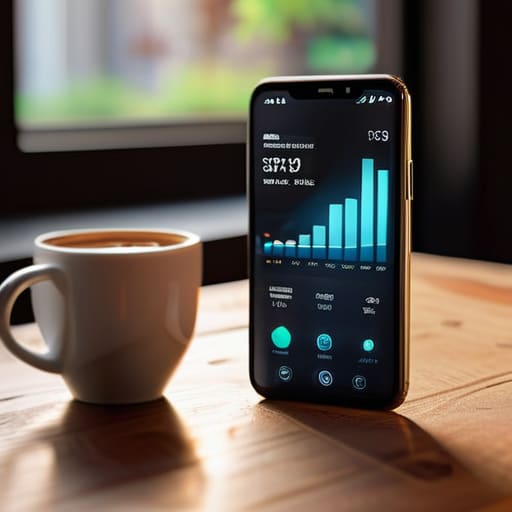
You don’t need to be a systems admin to find the culprit. Skip the deep menus and just head straight to your phone’s “Data Usage” section under Settings. Most modern smartphones will give you a neat, ranked list of every app and exactly how many megabytes it’s swallowed. It’s usually one or two offenders—typically social media or video apps—doing 80% of the damage. Find the hog, see the number, and decide if it’s worth the cost.
Will putting my phone in Low Data Mode affect my battery life or the speed of my connection?
Here’s the short answer: it’s a bit of a trade-off. Low Data Mode is actually a win for your battery because it stops your phone from constantly hunting for updates and syncing in the background. You’re essentially telling the device to stop working so hard. As for speed, you might notice a slight lag in things like auto-playing videos or instant photo backups, but for basic browsing and messaging? You won’t notice a thing.