

I’m going to say something that might ruffle a few feathers in the productivity influencer community: you do not need a $300 ring light or a professional-grade backdrop to stop looking like a grainy ghost in your meetings. I’ve spent enough time troubleshooting tech for clients to know that most of the “hacks” floating around online are just expensive distractions. If you’re spending twenty minutes adjusting digital filters only to realize you still look like you’re filming from a basement, you’re wasting the one thing you can’t get back: your time. Learning how to look better on video calls shouldn’t feel like a high-stakes production; it should be a simple matter of setting up a few reliable, functional basics that work every single time.
I’m not here to sell you a lifestyle or a new piece of hardware. Instead, I’m going to give you the no-nonsense essentials—the kind of practical adjustments to lighting, angles, and environment that actually move the needle. We’re going to focus on high-impact, low-effort systems that ensure you look professional and composed without the unnecessary stress. Let’s get your setup sorted so you can actually get back to work.
Stop Fiddling With Filters How to Look Better on Video Calls
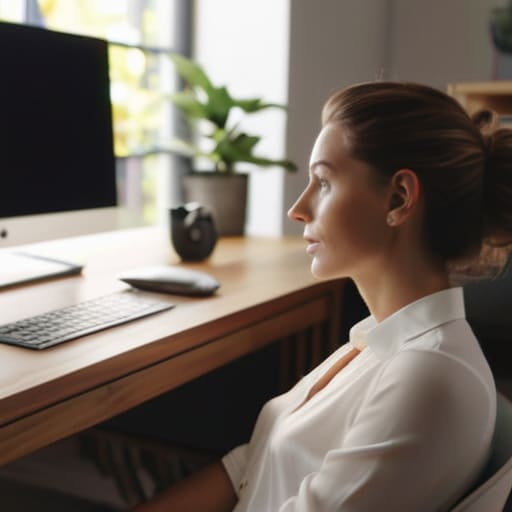
Look, I’ve spent enough time in front of a screen to know that hunting for the perfect “beauty filter” is a losing game. Most of them either make you look like a blurry porcelain doll or create a weird, uncanny valley effect that actually distracts your clients. If you want to improve your presence, stop chasing digital illusions and start looking at your physical environment. The most effective way to fix a grainy, washed-out image is a simple professional video call lighting setup. You don’t need a studio; just face a window during the day or position a desk lamp behind your monitor so the light hits your face directly. If the light is coming from behind you, you’re just a dark silhouette in a high-stakes meeting, and no amount of software can fix that.
Once you’ve sorted the light, check your positioning. I used to sit with my laptop flat on my desk, which meant every meeting felt like I was staring down at a stranger. It’s unflattering and feels aggressive. Instead, prop your laptop up on a stack of books to find the best camera angles for remote meetings. You want the lens to be at eye level or slightly above. It feels a bit clunky at first, but it immediately makes your posture look more intentional and your gaze more direct. It’s about functional setup, not digital magic.
Ditch the Shadowy Gloom With Professional Video Call Lighting Setup

Look, you don’t need a studio-grade ring light to avoid looking like you’re filming from a cave. Most of us are just fighting against that single, harsh overhead light that turns your face into a landscape of deep shadows. If you want a functional professional video call lighting setup without turning your home office into a film set, start with the window. Position yourself so the natural light is hitting you from the front, not from behind. If the sun is too aggressive, a sheer curtain works wonders to diffuse the glare.
If you’re working late or live in a place with zero natural light, don’t just rely on your desk lamp pointed at your keyboard. That’s a recipe for looking washed out or, worse, like a silhouette. Grab a simple lamp, place it slightly above your eye level and off to one side, and aim it toward your face. It’s one of those small, low-effort adjustments that makes a massive difference in improving webcam video quality. It’s not about looking like a movie star; it’s about being clear enough that people can actually see your expressions instead of squinting at a grainy, dark shape.
Finding the Best Camera Angles for Remote Meetings Without Stress
Most people default to the “laptop on the kitchen table” setup, which inevitably results in a view looking straight up your nose. Unless you’re trying to give your colleagues a tour of your nostrils, you need to fix your sightline. The goal for improving webcam video quality isn’t just about the lens; it’s about where that lens sits in relation to your eyes. I always tell my clients to aim for eye level. If you’re working from a laptop, grab a stack of heavy textbooks or a dedicated laptop stand to prop it up. You want the camera to meet your gaze naturally, rather than forcing you to hunch over like you’re staring into a dark well.
Once you have the height sorted, don’t forget the tilt. A slight downward angle can help define your jawline, but avoid anything so steep that you look like you’re peering over a fence. Finding the best camera angles for remote meetings is really about creating a sense of presence without looking like you’re trying too hard. It’s a subtle shift, but it moves you from “person trapped in a box” to a professional who actually looks like they belong in the room. Just set it, check your frame, and stop tweaking it—you have actual work to do.
Practical Ways for Improving Webcam Video Quality Without Fancy Gear
Look, I’m not going to tell you to go out and buy a $200 ring light or a 4K mirrorless camera. Most of us are working from a desk in a corner of the spare room, not a professional studio. If you want to start improving webcam video quality without draining your bank account, the first thing you need to do is clean your lens. I know, it sounds ridiculously basic, but we touch our laptops and phones all day. A quick wipe with a microfiber cloth removes that greasy film that makes everything look soft and hazy. It’s a thirty-second fix that makes a massive difference in clarity.
Next, let’s talk about your environment. You don’t need a curated showroom, but you do need to manage what’s behind you. Instead of stressing over elaborate video call background ideas, just aim for visual neutrality. A plain wall or a tidy bookshelf works wonders. The goal isn’t to impress your clients with your interior design; it’s about minimizing video call distractions so they actually listen to what you’re saying rather than staring at that pile of laundry just out of frame. Keep it simple, keep it clean, and keep the focus on the conversation.
Simple Video Call Background Ideas That Actually Look Tidy
We’ve all been there: you’re mid-sentence in a high-stakes meeting when a pile of laundry or a stray coffee mug in the background pulls everyone’s eyes away from what you’re actually saying. While it’s tempting to lean on those digital blur tools, they often look glitchy and can actually end up diminishing your video quality by creating weird, shimmering halos around your head. If you want a more stable remote work professional appearance, the most reliable solution is a physical reset.
I’m a big believer in the “one corner rule.” You don’t need a dedicated home office or a designer showroom; you just need one clean, intentional corner of a room. A simple bookshelf, a single healthy plant, or even just a plain, neutral-colored wall works wonders. The goal is minimizing video call distractions so the focus stays on your face and your message. If your space is currently a disaster zone, don’t panic—just pivot your desk or chair slightly to face a different wall. It takes thirty seconds, requires zero budget, and looks infinitely more authentic than a pixelated fake background.
Real Steps for Maintaining a Remote Work Professional Appearance
Look, you can have the most expensive ring light on the market, but if you’re wearing a tattered hoodie from a 2012 charity run, the tech isn’t going to save you. Maintaining a remote work professional appearance isn’t about dressing for a boardroom; it’s about signaling to your clients and colleagues that you are actually present and focused. I’ve found that a simple “uniform” strategy works best. Pick three or four reliable, clean tops that look intentional on camera—think structured knits or crisp collars—and keep them ready. When you aren’t spending ten minutes debating whether your shirt is too casual, you’re saving mental bandwidth for the actual meeting.
Beyond the wardrobe, consistency is your best friend. It’s easy to let things slide when you’re working from your kitchen table, but establishing a ritual helps. I make it a point to do a quick “system check” before my first call: check your hair, ensure your collar isn’t tucked in weirdly, and verify that you aren’t minimizing video call distractions by having a pile of laundry visible just off-camera. It’s not about perfection; it’s about creating a predictable, reliable image that allows your expertise to take center stage rather than your messy living room.
Minimizing Video Call Distractions So You Can Finally Focus
Once you’ve sorted out your lighting and found the right angle, the next hurdle isn’t how you look, but how much you’re actually processing. There is nothing more draining than trying to maintain a professional video call appearance while your neighbor starts a chainsaw or your toddler decides the living room is a wrestling ring. I’ve learned the hard way that you can have the most impressive professional video call lighting setup in the world, but if you’re constantly glancing at a pinging Slack notification or a wandering pet, you’ll never actually hold anyone’s attention.
To keep your sanity, you need to treat your digital environment with the same discipline you’d treat a physical office. This means closing every unnecessary tab and silencing your phone before you even hit ‘Join.’ If you’re working from a shared space, use a headset with decent noise cancellation—it’s a better investment than any high-end webcam. The goal isn’t to achieve a sterile, silent vacuum, but to control the variables you actually can. When you minimize the sensory noise, you stop being a reactive participant and start being a focused one. That’s when the real work actually happens.
Functional Tools to Get You Camera Ready and Back to Living
At the end of the day, I’m not interested in a tech stack that requires a PhD to operate. If your “setup” takes forty minutes to calibrate, it’s not a tool; it’s a chore. I’ve learned that the most effective way to maintain a remote work professional appearance is to invest in hardware that works the second you plug it in. A decent external webcam—even a mid-range one—is worth its weight in gold because it handles light much better than a built-in laptop lens. Pair that with a simple, adjustable laptop stand to fix your eye level, and you’ve already solved half your problems without needing a degree in cinematography.
I also swear by a physical checklist kept right next to my keyboard. Before I jump into a high-stakes meeting, I do a quick three-point sweep: check the light source, verify the background is tidy, and ensure my audio isn’t picking up the hum of the dishwasher. This ritual is about minimizing video call distractions and mental friction. Once these small, repeatable systems are in place, you stop troubleshooting your tech and start actually participating in the conversation. The goal isn’t to look like a studio professional; it’s to look competent enough that you can forget about the camera entirely.
Five Small Adjustments for a More Polished Presence
- Watch your eye contact. It feels unnatural to stare directly at the lens while you’re talking, but if you spend the whole meeting looking at your own tiny thumbnail in the corner, you’ll look disconnected. Try to glance at the camera hole every once in a while; it makes the other person feel like you’re actually listening.
- Check your audio levels before you hit ‘Join.’ There is nothing that kills a professional vibe faster than a person who sounds like they’re underwater or trapped in a wind tunnel. A quick mic check in your settings saves five minutes of awkward “Can you hear me now?” troubleshooting.
- Mind your wardrobe colors. Avoid wearing anything too close to your background color, or you’ll end up looking like a floating head. Stick to solid, mid-tone colors that provide a bit of contrast; it keeps the focus on your face rather than your shirt blending into your bookshelf.
- Manage your “digital clutter.” It isn’t just about your physical background; it’s about your screen. If you’re going to share your desktop, close those twenty browser tabs and that half-finished spreadsheet. A clean desktop shows you have your act together, even if your kitchen sink says otherwise.
- Control your facial expressions. When we’re focused, we tend to default to a “resting concentration face” that can look a bit grim on camera. A slight, intentional nod or a small smile when someone else is speaking goes a long way in making you appear engaged rather than just staring blankly into the void.
Getting Back to What Matters
At the end of the day, looking good on camera isn’t about achieving some impossible, airbrushed standard; it’s about reducing the friction between you and your work. We’ve covered a lot of ground—from fixing your lighting and finding a decent angle to tidying up that background and choosing tools that actually serve you rather than add more digital noise. If you can nail just two or three of these things—like getting your light source in front of you and clearing the clutter behind your head—you’ve already won. The goal is to build a functional setup that works every single time so you aren’t spending twenty minutes of every meeting troubleshooting your appearance instead of actually participating.
Remember, your webcam is just a tool, not a judge. I’ve spent enough time in IT and operations to know that the most important thing in any meeting is the clarity of your ideas and the presence you bring to the conversation. Once you have these small, repeatable systems in place, you can stop obsessing over every pixel and every shadow. Let these tweaks be the foundation that allows you to show up confidently, close your laptop, and get back to living your actual life. Don’t let the tech become the task; let it be the quiet facilitator that lets your real work shine.
Frequently Asked Questions
I’ve tried the lighting tricks, but how do I stop my face from looking washed out if I’m sitting directly in front of a window?
The “window wash” effect happens because the light is too bright and too direct, blowing out your features. If you can’t move your desk, stop fighting the sun and start diffusing it. Pull a sheer white curtain across the window—it turns that harsh glare into a soft, even glow. If that’s not an option, try angling your monitor slightly to catch some of that light, or grab a cheap ring light to balance the exposure.
Is it actually worth investing in a standalone webcam, or am I better off just using my phone as a camera?
Look, if you’re doing the occasional check-in, your phone is a powerhouse—just use an app like Camo to bridge the gap. But if you’re sitting in back-to-back meetings all day, buy the standalone webcam. Fiddling with phone mounts and worrying about battery life is just more troubleshooting you don’t need. A dedicated webcam is a “set it and forget it” tool. In my book, reliability always beats a temporary workaround.
How do I deal with the "eye contact" problem—looking at the person on the screen instead of the lens?
The “eye contact” struggle is real, and no, it’s not just you. When you look at the person’s face on your screen, you’re actually looking down, which makes you appear disconnected. My trick? Find a small physical marker—a piece of colorful tape or a tiny post-it note—and stick it right next to your camera lens. It gives your eyes a home base to return to, making the connection feel natural without the mental gymnastics.
What’s the quickest way to fix a messy background if I only have thirty seconds before a client call starts?
Forget the deep clean; you don’t have time for that. Grab whatever is cluttering your immediate view—coffee mugs, loose papers, even that pile of laundry—and shove it into a laundry basket or a drawer out of frame. If you’re really stuck, use the “Blur Background” setting on Zoom or Teams. It’s a digital band-aid, but it hides the chaos instantly so you can focus on the client instead of your messy desk.